Setup Guides
IPTV Smarters Pro Setup: Xtream Codes and M3U, Step by Step
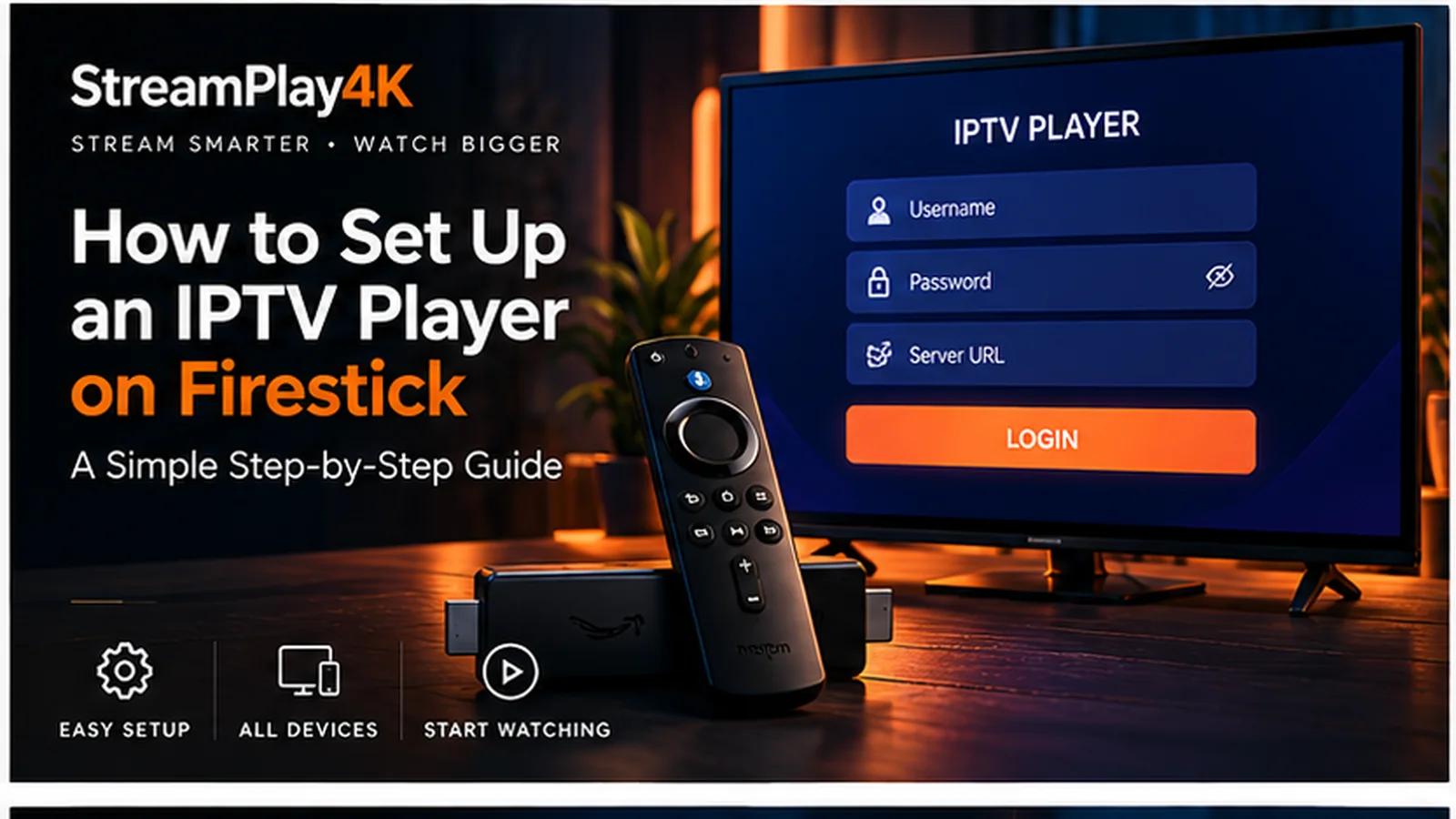
IPTV Smarters Pro is a player. It does not come with channels, it is not a subscription, and installing it will not give you anything to watch on its own. What it does is take login details from a provider and turn them into a channel list, a guide and an on-demand section.
That distinction matters because it decides where a problem lives. If the app opens but the list is empty, that is usually the details. If the app will not install at all, that is the device. This guide covers the first case.
What you need before you start
Three things, and you should have all of them in front of you before you open the app:
- The app itself, installed on your phone, tablet, Firestick, Android TV box or computer.
- Login details from your provider. Either an Xtream Codes set — server address, username, password — or a single M3U playlist link.
- A few minutes and the details on screen rather than on paper. Almost every failed login is a typing error, and you cannot paste from a sheet of paper.
If you do not have the second item yet, no amount of fiddling with the app will help. A player without a subscription is a remote control with no television in front of it.
Xtream Codes setup, field by field
Choose Login with Xtream Codes API on the first screen. You get four boxes:
- Any name — a label for you, nothing more. “Living room” is fine. It is not checked against anything.
- Username — exactly as sent, including capitals.
- Password — the same, and it is usually the longest source of typos.
- Server URL — the full address including
http://orhttps://and, where one was given, the port number after a colon.http://example.com:8080is a complete server URL;example.comis not.
Press Add User. If the details are right the app spends a few seconds pulling the channel list and then drops you on its home screen with Live TV, Movies and Series as separate tiles.
M3U setup
Choose Load Your Playlist or File URL instead. There are two boxes: a name for your own reference, and the playlist link itself.
Paste the link whole. An M3U URL is long and usually ends in something like
type=m3u_plus&output=ts. It is easy to cut short by accident when copying
from an email on a phone. A truncated link then fails with the same unhelpful
message as a wrong one.
Which method to choose
If your provider gave you both, use Xtream Codes. It is a live connection rather than a file, so the app can ask for things as it needs them. The guide arrives through the same login, categories come through already sorted, and your account’s expiry date is visible inside the app.
M3U earns its place when the app you are using only offers “load playlist”, or when you are setting up something that is not a phone or a Firestick at all. Some smart TVs and set-top boxes accept a playlist link and nothing else. Neither method changes the picture quality or the speed of the stream; they are two doors into the same subscription.
The differences are worth understanding properly if you are choosing for the first time — Xtream Codes or M3U goes through them in more detail.
Refreshing the list when something changes
Channel line-ups move. When a channel disappears or a new category does not show up, the app is usually holding an old copy rather than being broken.
On an Xtream login, open the app’s settings and look for a refresh or reload option — it re-reads the list from the server. On an M3U setup the equivalent is removing the playlist and adding the same link again, because a playlist is a snapshot taken at the moment you loaded it rather than a live connection.
The TV guide
Where a provider supplies EPG data, an Xtream login pulls it in automatically and you get a now-and-next guide without doing anything.
With M3U it depends on the player: some accept a separate EPG URL you paste in alongside the playlist, some do not offer it at all. If the guide matters to you and you have the choice, that is the strongest practical argument for the Xtream method.
Five mistakes that account for most failed logins
- Missing
http://on the server URL. The field wants a full address. - Missing port number. If your details included
:8080or similar, it is part of the address, not a footnote. - A trailing space. Copying from an email often catches one after the username. Most apps do not trim it for you.
- Capital letters. Usernames and passwords are case-sensitive.
- A truncated M3U link. Long links get cut when copied from a preview pane. Open the message fully before copying.
When the details are right and it still will not log in
Work through it in this order before assuming the account is at fault:
- Retype rather than paste, once. It sounds backwards, but invisible characters from a copy are a real cause and retyping rules them out.
- Try the same details in a different player. If they work elsewhere, the problem is the app or the device, not the subscription.
- Try a different network. Switching to mobile data for one attempt tells you whether something on your own network is in the way.
- Check the account is actually active. An expired subscription fails at the login screen, which looks identical to a typo.
- Send support the exact error. A screenshot of the message is worth more than a description of it — and never send your password.
If you are on a Firestick and the app itself will not install or open, that is a different problem with a different fix. The Firestick setup guide covers the install side. Choosing an IPTV player app for Firestick compares Smarters against the alternatives.
Does it work on my device?
IPTV Smarters Pro runs on Android phones and tablets, iPhone and iPad, Fire TV and Firestick, Android TV boxes, and Windows and macOS. Smart TVs vary by brand and model — some have it in their own store, some do not, and on those a different player is the answer rather than a workaround.
The setup guide has per-device instructions for the players we install and support.
Where the subscription comes from
Smarters will happily sit on your device doing nothing until you give it a provider. StreamPlay4K sends both formats — an Xtream Codes login and an M3U link — with every plan, so whichever the app asks for, you have it. Access is usually within 5–15 minutes after payment confirmation.
If you would rather see it working before paying for it, ask for a free trial of up to 24 hours and set it up on the device you actually plan to watch on. Otherwise what an IPTV subscription includes sets out the plans and what arrives with them.
IPTV Smarters Pro is developed and owned by its own developers. StreamPlay4K is an independent service and is not affiliated with, endorsed by or sponsored by them — the app is covered here because it reads the login formats included with every plan.
- Setup
- IPTV Smarters
- Xtream Codes
- M3U
Ready to get started?
Pick a plan, choose your devices, and we will send your invoice by email and WhatsApp.