Setup Guides
Best IPTV Player Apps for Firestick: Six Compared
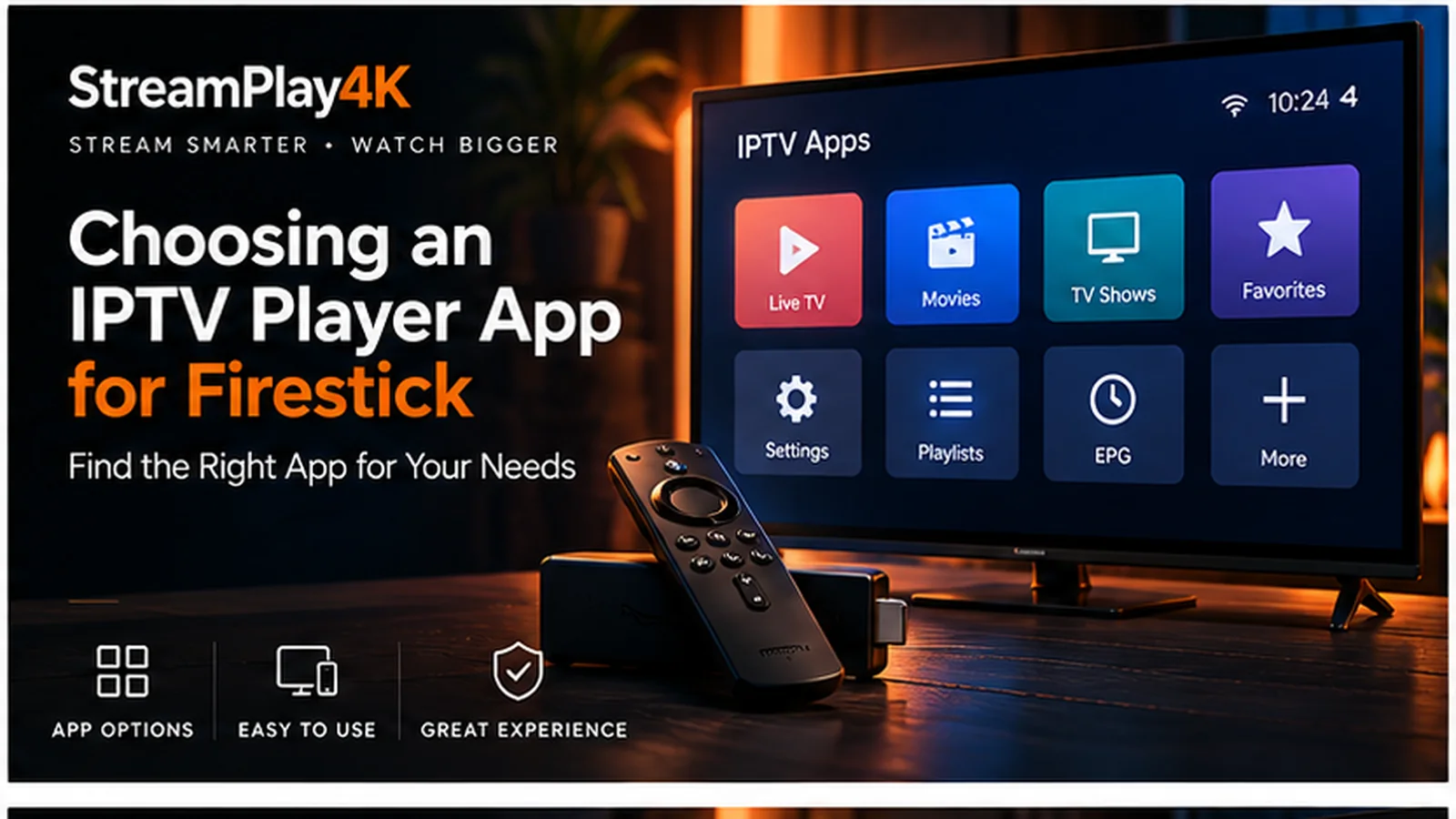
Your subscription and your player app are two different purchases — and only one of them costs anything. The subscription is what carries the channels. The player is the piece of software that turns a login into something you can navigate with a remote, and swapping it changes the interface, not the service.
That is worth knowing because if you dislike the app you were pointed at, you can use another one without changing anything else. This is about picking that app on a Firestick.
What actually separates them
Nearly every player on Fire TV reads the same two login formats, so that is rarely the deciding factor. What differs is:
- The guide. Whether there is a proper now-and-next EPG, and how usable it is with a remote rather than a touchscreen.
- How much setup it wants. Some apps are three fields and done. Others ask you to build a layout first.
- Whether it is in the Amazon Appstore. Anything that is not has to be sideloaded, which is a few extra minutes and a settings change.
- How it behaves on older hardware. A heavier interface shows on an ageing stick before the streams do.
Ignore anything that claims one player gives a better picture than another. They are all handing the same stream to the same decoder.
The players worth considering
These are the six that work with a StreamPlay4K plan: our own app, and five players that read the login formats every plan includes. The table covers only what can be stated plainly — where a detail varies by version or by provider, it says so rather than guessing.
| Player | Xtream | M3U | Guide (EPG) | Setup effort | Best suited to |
|---|---|---|---|---|---|
| StreamPlay4K app | App code | — | Yes | Lowest | StreamPlay4K customers who want one code and done |
| Hot Player | Yes | Yes | Yes | Low | People who want it set up once and supported |
| IPTV Smarters Pro | Yes | Yes | Yes with Xtream; varies with M3U | Low | A familiar layout across phone and TV |
| TiviMate | Yes | Yes | Yes | Medium | Guide-led viewing on a remote |
| XCIPTV | Yes | Yes | Yes | Medium | People who like to configure things |
| IBO Player | Yes | Yes | Varies | Low | Smart TVs and Apple TV as well as Fire TV |
The StreamPlay4K app is our own, so it only plays a StreamPlay4K plan. It signs in with the 8-character app code from your login email, with no server address to type, switches to a working server by itself if one has a problem, and updates itself. It has profiles, a Kids profile and a parental PIN. It installs with Downloader code 2073266; the install page shows each step.
Hot Player is the other app we install and support. If something goes wrong in it, support knows the app and can walk you through it, which is not true of the others to the same degree.
IPTV Smarters Pro is the one most people have already met. Its layout is the same across phone, tablet and TV, which makes it easy if you watch on more than one. Setting it up is four fields; the setup walkthrough covers them.
TiviMate is built around the guide rather than around a channel list, which is the right shape if you browse by what is on rather than by channel name. It is popular on Fire TV specifically. Some of its features sit behind a paid upgrade — check the current terms in the app before assuming a feature is included.
XCIPTV rewards people who want to arrange things themselves. More settings, more ways to lay out the interface, and correspondingly more time spent before you are watching.
IBO Player earns its place on households with mixed devices, because it runs on smart TV platforms and Apple TV as well as Fire TV — one app to learn rather than three.
A quick way to decide
- You are a StreamPlay4K customer and want the fewest steps → our app.
- You want a third-party player with someone to call → Hot Player.
- You already use Smarters on your phone → Smarters Pro.
- You browse by guide, not by channel → TiviMate.
- You enjoy setting things up properly → XCIPTV.
- You have a Fire TV and a smart TV and want one app → IBO Player.
None of these is a wrong answer. If you install one and dislike it, your login works in the next one — nothing is consumed by trying.
Installing on a Firestick
Whether an app needs sideloading depends on whether it is in the Amazon Appstore, and that changes over time. Check the Appstore first; it is the simpler route when the app is there.
For anything that is not, Fire OS blocks installation until you allow it: Settings → My Fire TV → Developer options → Install unknown apps, switched on for Downloader. If Developer options is missing entirely, open Settings → My Fire TV → About and click your Fire TV Stick seven times.
Installing our app takes Downloader code 2073266, and the Firestick section of the setup guide has the full sequence for Hot Player.
When the app is not the problem
An app that opens but shows nothing is almost always a login issue rather than an app issue — wrong server address, a missing port number, or a trailing space in the username. If streams play but stutter, that is a network or hardware question instead, and why your stream buffers works through it in order.
Trying a second player is itself a useful diagnostic: if the same login misbehaves in two apps, the app is not the cause.
What you still need
A player is free and useless on its own. It needs a subscription to read.
StreamPlay4K sends an app code for our own app, and both an Xtream Codes login and an M3U link, with every plan, so whichever app you settle on, you have the format it asks for. If you want to try one on your own stick first, ask for a free trial of up to 24 hours — testing on the actual hardware and the actual Wi-Fi is the only test that means anything.
For what a plan includes and how the device count works, see IPTV on Firestick.
Amazon, Fire TV and Fire TV Stick are trademarks of Amazon.com, Inc. The player apps named here, other than our own, belong to their respective developers. StreamPlay4K is an independent service and is not affiliated with, endorsed by or sponsored by Amazon or by any of these developers; the apps are listed because they read the login formats included with every plan. No app was scored, ranked or tested under laboratory conditions — this is a description of what each is built for.
- Firestick
- Fire TV
- Player Apps
- Setup
Ready to get started?
Pick a plan, choose your devices, and we will send your invoice by email and WhatsApp.